How to Generate AI B-Roll for Videos Using Claude Code and Gemini Omni
Use Claude Code and Gemini Omni to generate custom B-roll, animated web page highlights, and background effects for your videos without stock footage.
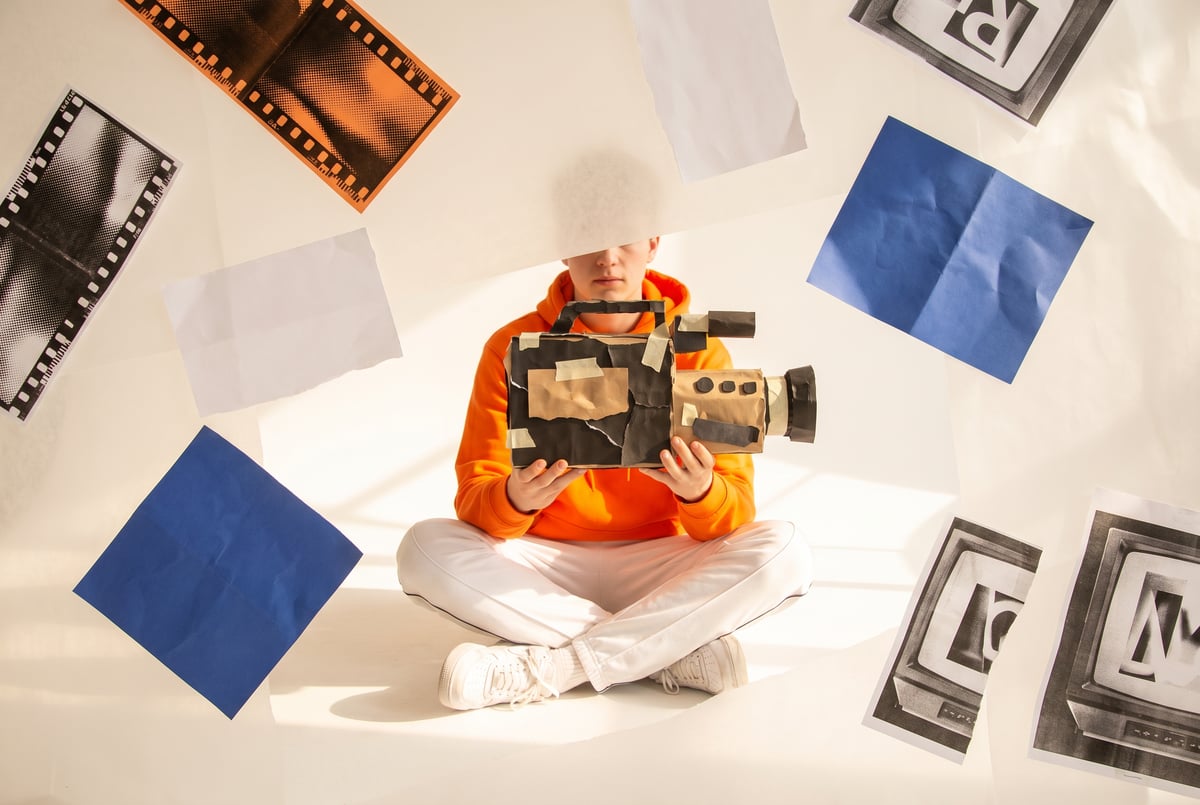
Why Stock B-Roll Is Holding Your Videos Back
Finding good B-roll is one of the most tedious parts of video production. You either spend hours sifting through stock libraries for footage that’s “close enough,” or you shoot it yourself — which takes time and gear most creators don’t have lying around.
AI video generation is changing that. With Claude Code and Gemini, you can generate custom B-roll, animated web highlights, and abstract background visuals on demand — tuned exactly to your content. No licensing fees, no generic stock footage, no reshoots.
This guide walks through exactly how to set up that workflow: using Claude Code to write and orchestrate generation scripts, and Gemini’s multimodal capabilities to create and analyze video content that matches your existing footage.
What AI B-Roll Generation Actually Means
B-roll is any supplementary video footage that plays over your primary recording — product close-ups, screen captures, abstract transitions, nature cuts, whatever fills visual gaps while your narration keeps going.
Traditional B-roll requires a camera, a location, and editing time. Stock B-roll is faster but rarely fits precisely. AI-generated B-roll sits in a different category: it’s created to spec, at the moment you need it, with complete control over style, motion, and content.
The approach covered here uses three components working together:
- Claude Code — Anthropic’s agentic coding environment, where Claude writes and executes scripts autonomously, calls APIs, and iterates on outputs
- Gemini’s multimodal models — Google’s video-capable AI models that can analyze existing video frames, generate descriptive prompts, and produce short video clips via the Veo API
- A local or cloud script runner — where the orchestration actually happens
Other agents ship a demo. Remy ships an app.
Real backend. Real database. Real auth. Real plumbing. Remy has it all.

The result is a repeatable pipeline: feed in your main video, get back matched B-roll you can drop directly into your timeline.
Prerequisites Before You Start
Before running anything, make sure you have the following in place.
Accounts and API Access
- Anthropic API key with access to Claude Sonnet or Opus (Claude Code uses the API under the hood)
- Google AI Studio account with access to the Gemini API — specifically Gemini 1.5 Pro or Gemini 2.0 Flash for video understanding
- Vertex AI access if you want to use Veo for actual video generation (this requires a Google Cloud project with billing enabled)
Local Setup
- Node.js 18+ or Python 3.10+
ffmpeginstalled on your machine (for video frame extraction)- The Anthropic SDK and Google Generative AI SDK installed
For Python:
pip install anthropic google-generativeai google-cloud-aiplatform ffmpeg-pythonFor Node.js:
npm install @anthropic-ai/sdk @google/generative-aiYour Source Video
Have a rough cut or raw recording ready. You don’t need a fully edited video — even a script or transcript works for prompt generation.
Step 1: Extract Frames and Analyze Your Footage with Gemini
The first step is giving Gemini a visual understanding of your video so it can generate B-roll that actually matches in tone and content.
Extract Key Frames with ffmpeg
You don’t need to feed the full video to Gemini. Extract one frame every 5–10 seconds:
ffmpeg -i your_video.mp4 -vf "fps=1/5" frames/frame_%04d.jpgThis gives you a set of JPEG frames representing your video’s visual structure.
Send Frames to Gemini for Scene Analysis
Claude Code can write and execute this analysis script for you. Give it a prompt like:
“Write a Python script that sends a folder of video frames to the Gemini 1.5 Pro API and returns a list of scene descriptions I can use as B-roll prompts. Include the dominant colors, setting, and mood for each frame cluster.”
Claude Code will write something like this:
import google.generativeai as genai
import os
from pathlib import Path
import base64

genai.configure(api_key=os.environ["GEMINI_API_KEY"])
model = genai.GenerativeModel("gemini-1.5-pro")

frames_dir = Path("frames")
frame_files = sorted(frames_dir.glob("*.jpg"))

# Group frames into clusters of 5 for efficiency
clusters = [frame_files[i:i+5] for i in range(0, len(frame_files), 5)]

scene_descriptions = []

for i, cluster in enumerate(clusters):
    images = []
    for frame_path in cluster:
        with open(frame_path, "rb") as f:
            image_data = base64.b64encode(f.read()).decode("utf-8")
        images.append({
            "inline_data": {
                "mime_type": "image/jpeg",
                "data": image_data
            }
        })

    prompt = """Analyze these video frames and return:
1. A short scene description (what's happening)
2. Visual style (colors, lighting, mood)
3. A suggested B-roll prompt for AI video generation that would complement this scene

Format as JSON."""

    response = model.generate_content([prompt] + images)
    scene_descriptions.append({
        "cluster": i,
        "analysis": response.text
    })

print(scene_descriptions)
The output gives you structured scene data — essentially AI-written prompts matched to your video’s visual context.
Step 2: Generate B-Roll Video Clips with Veo
Google’s Veo model (accessible via Vertex AI) is currently one of the strongest options for short video clip generation. It handles motion well and takes detailed text prompts.
Have Claude Code Write the Veo API Call
Ask Claude Code to write the generation script based on the scene analysis output from Step 1:
“Take this JSON list of scene descriptions and write a script that calls the Veo API via Vertex AI to generate a 5-second B-roll clip for each scene. Save each clip as an MP4 in a ‘b_roll’ folder.”
Other agents start typing. Remy starts asking.
Scoping, trade-offs, edge cases — the real work. Before a line of code.
Claude Code will handle the API structure, including the asynchronous polling that Veo requires since generation takes time:
from google.cloud import aiplatform
import vertexai
from vertexai.preview.vision_models import VideoGenerationModel
import json
import time

vertexai.init(project="your-project-id", location="us-central1")
model = VideoGenerationModel.from_pretrained("veo-2.0-generate-001")

with open("scene_descriptions.json") as f:
    scenes = json.load(f)

for i, scene in enumerate(scenes):
    prompt = scene["suggested_broll_prompt"]

    print(f"Generating clip {i+1}/{len(scenes)}: {prompt[:60]}...")

    operation = model.generate_video(
        prompt=prompt,
        duration_seconds=5,
        aspect_ratio="16:9",
        output_gcs_uri=f"gs://your-bucket/broll/clip_{i:03d}.mp4"
    )

    # Poll for completion
    while not operation.done():
        print("Waiting for generation...")
        time.sleep(10)

    result = operation.result()
    print(f"Clip {i+1} ready: {result.videos[0].uri}")
Once complete, you’ll have a folder of MP4 clips matched to your video’s scenes.
Step 3: Generate Animated Web Page Highlights
One specific B-roll type that’s useful for tutorial videos, product demos, and explainers is animated web page highlights — smooth zooms, highlights, and annotations on top of a web UI.
This is where Claude Code really shines as a code-writing agent.
Have Claude Code Generate an Animated HTML/CSS Overlay
Ask it:
“Write an HTML file that shows a browser window mockup with animated highlights — yellow glow boxes that appear and move to different areas on a 5-second loop. Export it as a video using Puppeteer.”
Claude Code can build the full animation in HTML/CSS/JavaScript and then use Puppeteer to record it as a video:
const puppeteer = require('puppeteer');

async function recordAnimation() {
  const browser = await puppeteer.launch();
  const page = await browser.newPage();

  await page.setViewport({ width: 1280, height: 720 });
  await page.goto('file:///path/to/your/animation.html');

  // Use CDP to capture frames
  const client = await page.createCDPSession();
  await client.send('HeadlessExperimental.beginFrame');

  // Record for 5 seconds at 30fps
  const frames = [];
  for (let i = 0; i < 150; i++) {
    const frame = await client.send('HeadlessExperimental.beginFrame', {
      frameTimeTicks: (i * 1000) / 30,
      screenshot: { format: 'jpeg', quality: 90 }
    });
    if (frame.screenshotData) {
      frames.push(frame.screenshotData);
    }
  }

  await browser.close();
  return frames;
}
This approach lets you create custom UI highlight animations without screen recording software. You can style the web mock to match any product or platform.
Step 4: Generate Abstract Background Effects
For talking-head videos or podcasts, abstract animated backgrounds work well as B-roll to cut to when you want visual variety without showing anything specific.
Using Claude Code to Create Generative Art Videos
Claude Code can write scripts that use canvas APIs or libraries like Three.js to render animated visual effects, then export them as video:
“Write a Node.js script using canvas and ffmpeg to generate a 10-second looping abstract particle animation — dark background, slow-moving blue and purple particles. Export as MP4.”
Claude Code handles the math for particle movement, the canvas rendering loop, and the ffmpeg piping. You end up with a custom-generated background clip that doesn’t exist anywhere else.
Alternatively, you can use image generation models (like FLUX or Stable Diffusion) in a sequence — generate 30 frames with slight prompt variations, then stitch them into a video with ffmpeg. Claude Code can write that pipeline end-to-end.
Step 5: Assemble Everything Into Your Timeline
Once you have your B-roll clips, you need to get them into your editing software. A few practical notes:
Clip Formatting
All generated clips should be:
- 1920×1080 or 1280×720
- H.264 encoded (universally compatible)
- At 30fps to match most recording setups
If Veo outputs in a different format, have Claude Code write a batch ffmpeg conversion:
for f in b_roll/*.mp4; do
  ffmpeg -i "$f" -vcodec h264 -acodec aac "converted/$(basename $f)"
done
Matching Color Grade
AI-generated footage won’t automatically match your camera’s color profile. In your editor (Premiere, DaVinci, Final Cut), apply a simple LUT or color correction to each B-roll clip to match brightness and saturation with your main footage.
Audio Considerations
Most AI-generated video clips have no audio — that’s usually fine for B-roll, since you’re cutting away from your main audio track anyway. If you need ambient sound, use a separate royalty-free audio layer.
Where MindStudio Fits Into This Workflow
The approach above works, but it requires you to run scripts locally, manage API keys, handle errors, and re-run things when clips don’t come out right. That’s fine for technical users, but it adds friction for anyone who wants to use AI B-roll generation repeatedly as part of a content workflow.
This is exactly the kind of multi-step AI media pipeline that MindStudio’s AI Media Workbench was built for.
MindStudio gives you access to Gemini, Veo, FLUX, and 200+ other models in one place — no separate API accounts, no local setup, no script maintenance. You can build a B-roll generation agent with a visual workflow editor:
- Upload your video or script — MindStudio accepts video input directly
- Run a Gemini analysis step — extract scene descriptions automatically
- Feed descriptions into Veo or another video model — generate clips in the same workflow
- Download or route the clips — send them to Google Drive, Dropbox, or an editing tool via integration
The whole pipeline runs in MindStudio’s cloud. You can trigger it from a form, a webhook, or even an email. If you’re producing videos regularly, you can schedule it to run automatically for every new upload.
For developers who want to keep Claude Code as their agent but offload the media generation infrastructure, MindStudio’s Agent Skills Plugin lets Claude call MindStudio’s video generation capabilities directly via the @mindstudio-ai/agent npm package — a simple method call instead of building Veo API polling from scratch.
You can start building on MindStudio for free at mindstudio.ai.
Common Mistakes and How to Avoid Them
Prompts That Are Too Generic
Vague prompts like “nature background” or “tech footage” produce generic results. Use the Gemini scene analysis to get specific prompts — “slow cinematic pan across server room with blue LED lighting, shallow depth of field, no people” produces much better output.
Not Checking Clip Length Before Editing
AI video generation sometimes returns clips shorter than requested. Always verify duration before importing:
ffprobe -v quiet -print_format json -show_format clip.mp4 | grep durationIgnoring Motion Style Mismatches
If your main footage is handheld and shaky, a perfectly smooth AI-generated clip will look jarring. Include motion style in your prompts: “slight camera shake,” “handheld style,” or “static shot” depending on what matches your main recording.
Overusing the Same B-Roll Patterns
Remy doesn't build the plumbing. It inherits it.
Other agents wire up auth, databases, models, and integrations from scratch every time you ask them to build something.
Remy ships with all of it from MindStudio — so every cycle goes into the app you actually want.
If every cut goes to the same type of abstract animation, viewers notice. Mix clip types — some abstract, some web highlights, some realistic environments — to keep the edit feeling varied.
Frequently Asked Questions
Can Gemini actually generate video, or does it only analyze it?
Gemini’s core models (1.5 Pro, 2.0 Flash) are multimodal — they can understand and describe video, but they don’t generate it directly. Video generation comes from Veo, which is a separate Google model accessible via Vertex AI. In this workflow, Gemini handles the analysis and prompt generation step, and Veo handles the actual video output.
How much does it cost to generate AI B-roll this way?
Costs vary. Gemini API calls for frame analysis are inexpensive — typically a few cents per video. Veo generation is more significant: Google currently charges per second of generated video on Vertex AI, and rates can be several cents per second. A 10-clip B-roll set of 5-second clips might cost $1–5 in API fees depending on model tier. Veo pricing is subject to change as the model is still relatively new.
Do I need coding experience to use Claude Code for this?
Claude Code is designed to write and run the code itself — you describe what you want in plain language and it handles the implementation. That said, you still need to set up the environment, install dependencies, and troubleshoot API errors. Some comfort with the command line is helpful. If you want a completely no-code version of this workflow, MindStudio’s visual builder handles all of that for you.
What video editing software works best with AI-generated B-roll?
Any professional editor works: DaVinci Resolve, Premiere Pro, Final Cut Pro, or even CapCut for simpler edits. Since AI-generated clips are standard MP4 files, there’s no special import process. The main consideration is color matching — DaVinci has the most powerful free color grading tools if you need to blend AI footage with camera footage.
Can I generate B-roll from just a script, without existing video footage?
Yes. If you skip the frame extraction step, you can give Gemini your written script and ask it to generate scene-appropriate prompts directly. This works well for explainer videos or educational content where you’re narrating over B-roll rather than appearing on camera.
Is AI-generated video good enough quality for professional use?
Veo 2 produces footage that holds up well in short clips — especially abstract effects, environments, and product visuals. It’s not replacing cinematography for narrative film, but for B-roll in YouTube videos, online courses, or marketing content, the quality is more than sufficient. The main limitation is consistency across clips and occasional artifacts in complex scenes.
Key Takeaways
- Claude Code acts as the orchestration layer — writing, running, and iterating on scripts to call Gemini and Veo APIs without manual coding
- Gemini’s multimodal capabilities let you analyze existing footage and generate matched B-roll prompts automatically
- Veo handles the actual video generation; animated web highlights and abstract backgrounds can also be created with canvas-based code
- The full pipeline can be reproduced with a few API keys and standard open-source tools, or built visually in MindStudio if you want something you can run repeatedly without touching code
- Always verify clip length, color grade, and motion style before cutting generated B-roll into your timeline
Seven tools to build an app. Or just Remy.
Editor, preview, AI agents, deploy — all in one tab. Nothing to install.
For anyone producing video content regularly, building this pipeline once pays off quickly — you spend your time editing, not searching for footage that doesn’t quite fit.